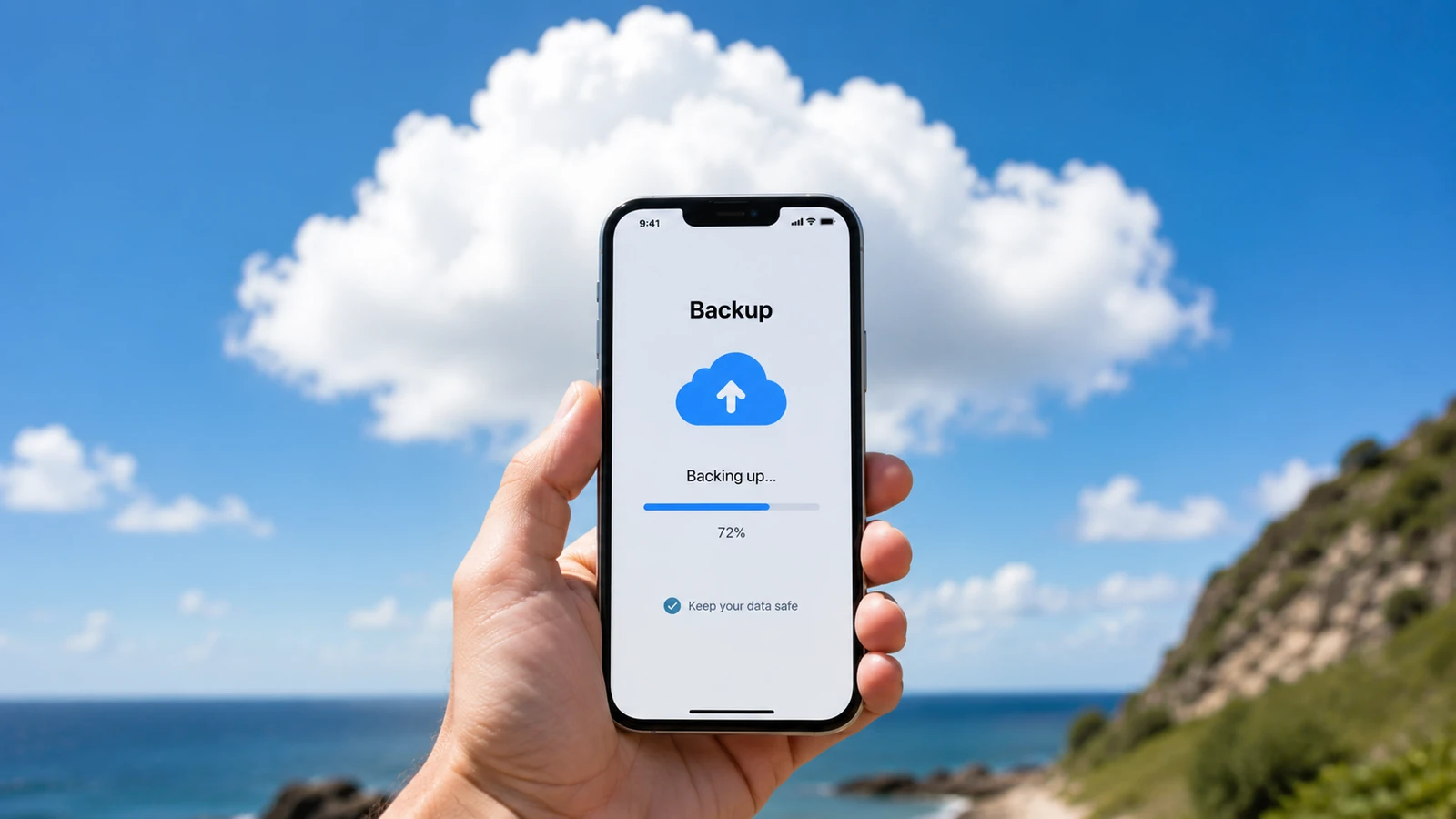
TL;DRThe night before you leave, force a full iCloud or Google Drive backup of your phone. If the phone is lost or destroyed, you keep your photos, contacts, messages, and most app data. Without the backup, those are simply gone.
Phone loss is the worst consumer travel disaster because it's not just the device. It's every photo of the trip up to that point, every contact, every saved password not in iCloud Keychain, every text conversation that mattered. A fresh cloud backup before you leave home turns "phone lost" from "catastrophic" to "annoying."
The work is trivial. The catch is that automatic backups quietly skip frequently: when storage is full, when the phone wasn't on WiFi long enough, when something silently failed weeks ago. A manual force the night before catches all of that.
iPhone (iCloud Backup)
- Connect to WiFi and plug into power.
- Settings → [Your Name] → iCloud → iCloud Backup.
- Confirm "Back Up This iPhone" is on. If iCloud storage is full, you'll get an error here. Buy temporary upgrade storage ($0.99–9.99/month), far cheaper than re-buying your trip photos.
- Tap "Back Up Now."
- Leave the phone connected until you see a fresh "Last successful backup: [today's date]" entry. This typically takes 20–60 minutes.
Android (Google One Backup)
- Connect to WiFi and plug into power.
- Settings → System → Backup (or Google → Backup, depending on Android version).
- Confirm "Back up to Google Drive" is on. Check that all the data types you care about are enabled (Photos, App data, Call history, SMS).
- Tap "Back up now."
- Leave the phone connected until you see a fresh "Last backup" timestamp.
Specific things to verify backed up
- Photos: Google Photos or iCloud Photos enabled, and the "all photos uploaded" indicator is showing.
- Contacts: stored in Google Contacts or iCloud Contacts, not just SIM.
- WhatsApp / Signal / Telegram messages: these have their own per-app backup settings (WhatsApp backs up to Google Drive / iCloud separately from the system backup). Force a fresh in-app backup the same night.
- Authenticator app codes: Google Authenticator, Authy, Microsoft Authenticator all have their own export/backup flows. If you don't have these backed up, losing the phone means losing 2FA access to every account that uses them (back to the printed backup-codes tip).
- Sticky notes, voice memos, anything you've never backed up before: double-check it's actually syncing.
What to do mid-trip if you're worried
Photos in particular accumulate fast. Many travelers' phones are 30–80 GB of new photos by the end of a long trip, most of which haven't backed up because of slow hotel WiFi or capped data plans. Two mitigations:
- Manually upload the day's photos to Google Photos or iCloud when you're on solid hotel WiFi at night. Most apps let you pick "back up over WiFi only" to avoid burning cellular data.
- If WiFi at your hotel is bad, find a café with reliable WiFi and let your phone catch up while you eat. Cafe owners are usually fine with this.
Bottom line
The cost is 10 minutes of attention and possibly a few dollars of temporary cloud storage. The protected value is every photo and contact on your phone. There's no scenario where this isn't worth doing the night before a trip.